







How to gift TraitLab Plus to someone
Share the full TraitLab Plus experience by gifting it

On this page
With TraitLab’s Gift Plus, sharing the full TraitLab Plus experience has never been easier. You can buy TraitLab Plus for someone else, giving them immediate access to a fully upgraded, pre-paid account. (If you’ve used TraitLab before, this is the same feature that used to be called Invites.)
Who can benefit from this?
- Friends: Compare your results with each other for a deeper understanding of what you share and where you differ.
- Family: Offer the people closest to you insights into their own and each other’s strengths and personalities.
- Couples: Explore and compare your results for deeper understanding of each other.
Gifting is built for personal use. If you’re looking to assess a team, coach clients, or onboard a group, that’s what TraitLab Pro is built for.
What a gift costs
Gift pricing gets cheaper the more you give. The price is based on how many gifts you’ve bought in total, and it never resets:
- Your first gift: $24.50
- Your second and third gifts: $19.50 each
- Every gift after that: $14.50 each
You don’t need to buy in bulk to reach the lower prices. Each gift is purchased on its own, and the count carries forward for as long as you have an account — so your fourth gift is $14.50 whether you bought the first three last week or three years ago.
Your current price is always shown on the Gift Plus page, so you’ll know what your next gift costs before you buy it.
One thing to know before you start: gifting requires your own account to be on TraitLab Plus. It doesn’t matter how you got there — whether you upgraded yourself or someone gifted Plus to you, both count.
How it works
1. Log In: Sign in to your TraitLab account and navigate to the Gift Plus section via the top menu.
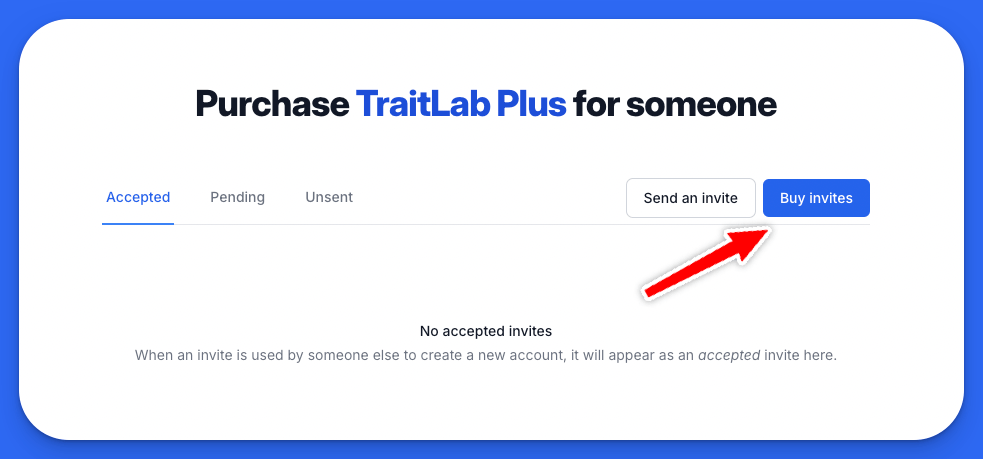
2. Buy a gift: Click on the Buy gifts button to purchase a gift at your current price.
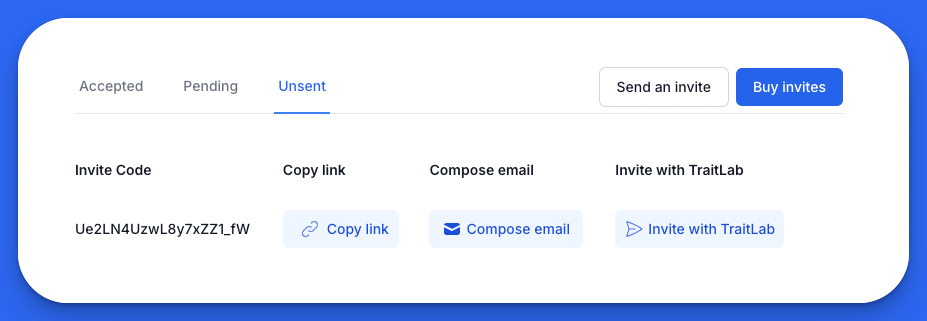
3. View available gifts: After purchase, your available gifts will be listed as Unsent.
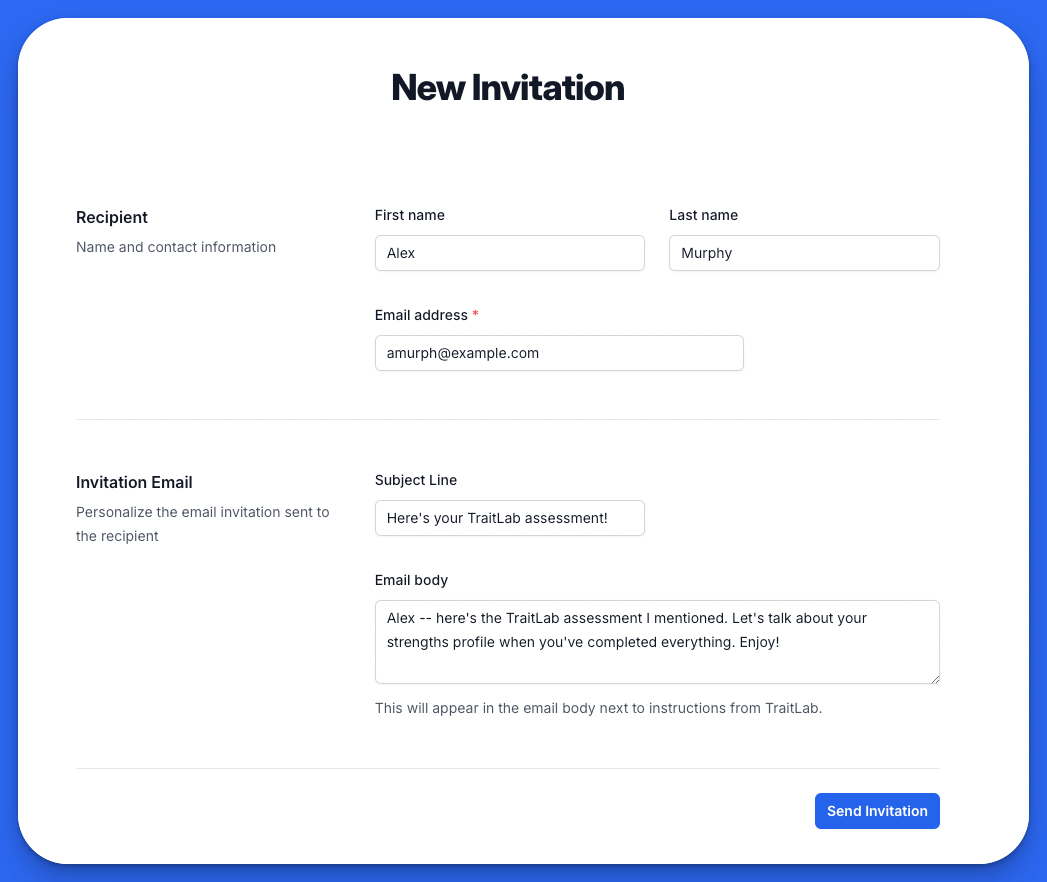
4. Send a gift: Click Send a gift to let TraitLab handle the delivery. Just enter the recipient’s name, email, and an optional personalized message.
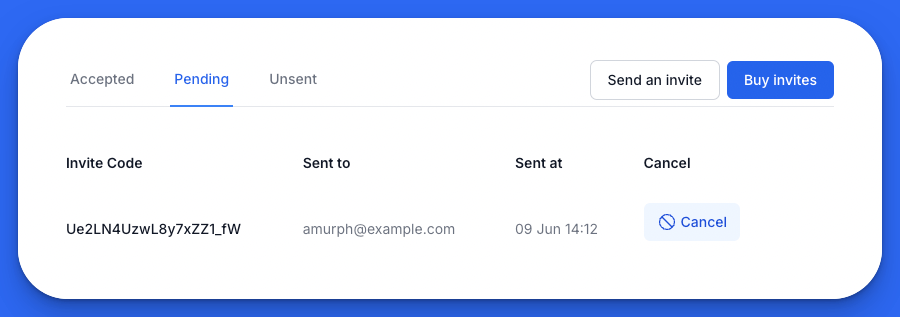
5. Track status: Once sent, the gift will show as Pending. You can cancel any pending gift if you change your mind, reverting it back to Unsent.
6. Confirm acceptance: The recipient receives an email from TraitLab to redeem their account. Upon acceptance, the status changes from Pending to Accepted.
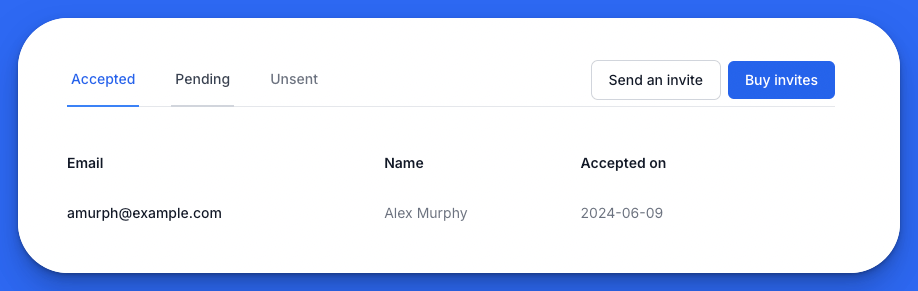
Canceling a pending gift doesn’t cost you anything — the gift returns to your Unsent list, ready to send to someone else.
The built-in system not only simplifies tracking but also confirms when gifts are sent and accepted.
Other ways to share a gift
You’re not limited to the built-in delivery. Feel free to copy the gift codes from Unsent to your preferred communication tool like email, Slack, or Teams.
-
Direct link sharing: Use the Copy link button to grab a shareable link.
-
Compose email: Use Compose email to draft a pre-written email with the gift link using your default email provider (e.g., Gmail, Apple Mail, Outlook).
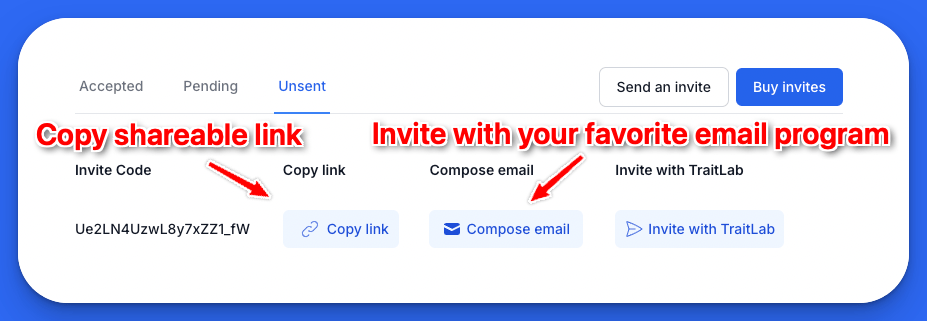
However you send it, the recipient redeems the same code. On the redemption screen it’s labeled an invite code, so don’t worry if the wording doesn’t match exactly — it’s the gift you sent.